Monday, April 27, 2026

Making a Filtered Professional Learning Sheet

I keep track of all my PD learnings on a Google Document. After 16 years, however, this document has become very long. I wanted to somehow make it shorter -- I guess I could make a website -- but it seemed like a good way for me to test my Google Sheets skills.


Dynamic Dropdown menus work by matching data to the dropdown menu name where you would need a seperate sheet to keep the data.

I have two tabs on this sheet. 


=ARRAYFORMULA(IF((B4="All")+(B4=""), 'Professional Learning Data'!A2:E, IFERROR(FILTER('Professional Learning Data'!A2:E, 'Professional Learning Data'!F2:F=B4))))


In order to search both tags, I needed to filter both columns using this part of the formula:

FILTER('Professional Learning Data'!A2:E, 'Professional Learning Data'!F2:F=B4.

This works pretty good, but in order to make it work, I need to give full access to the sheet to anyone. That's why I am trying to turn it into a website.

Professional Learning Website


Thomas Hammerlund Professional Learning and Professional Development


Friday, April 10, 2026

Conditional Formatting - Order Matters

While preparing a dataset so that it was presentable to the staff, I tried highlighting blank cells using Conditional Formatting. 


It was great until some other conditional formatting got in the way.


In order to make it show up I had to change the order of the conditional formatting rules. To fix it, I had to reorder the rules as Google Sheets in order. 

Just remember that the rule that is first will always show first -- on top.

Thursday, March 26, 2026

Streamlining a Google Form


This morning I received a Google Form to fill out regarding the platforms we teachers are using. It is a standard form. I did an entire screen grab, and as you can see, it is pretty long.


Zooming in a little, I noticed many of the questions are about the grade you teach. 


To begin, the Form doesn't ask for a name, so I can skip 

 to grade. I wanted to make it a radial question (multiple choice) but some teachers teach multiple grades. So, this question will need to be checkboxes.


Again, teachers use multiple platforms. I might even add an "other" option here.  But let's try it the way it is, and we can edit it later.


To make a long post short (or I'll never finish this post I started months ago), when making a Form or survey, it is better to try to group the big ideas together and use the filtering options in Google Sheets. This can make the Form much shorter for the users.


Monday, March 9, 2026

CHOOSECOLS


I have been putting together a data dashboard for my school for two years, and you'd think I would have had this figured out by now, but I didn't - the grades 1-12 all work out fine and sort nicely, but when I add in our early years classes (KB, KA, PS) those aren't recognized as number so they are put at the end of the list, after Grade 12; not in front of grade 1 where they should naturally reside.

Not knowing how to solve this effectively, I turned to ChatGPT to help me out. 

It suggested I make a helper column, I called it "hidden", and label each grade with its own grade, since the numbers were not a problem, and we needed to convert the "KB", KA, and "PS" text to a numerical value to rank them against other numbers.

I gave them -3 for PS, -2 for KA, and -1 for KB. 


I then used this formula to make the grade for each grade. It reads column B and rewrites the grade in column D for me.

A screenshot of the formula - =ARRAYFORMULA(  IF(B2:B="","",   SWITCH(B2:B,    "PS",-3,    "KA",-2,    "KB",-1,    VALUE(B2:B)   )  ) )

Then I wanted another table with everything sorted. I would have used QUERY, but ChatGPT suggested I use CHOOSECOLS. The reason it said was that QUERY is used to search a database, whereas CHOOSECOLS creates a new array from the selected columns in the existing range.

That was kind of cool - I'd never used that formula before. 


A screenshot of the formula - =CHOOSECOLS(   SORT(A2:D, 4, TRUE),   1,2,3 )

The documentation shows it being used to manipulate data in an already-made table.

Tuesday, March 3, 2026

Keep a Contact List in a Doc Updated Using Google Sheets

The other day, I was reading our Teacher Handbook. The Teacher Handbook includes names of teachers and what they teach. The problem is that one teacher had changed positions and so the handbook was out of date.

This video shows how to keep documents updated by maintaining a single spreadsheet.


Monday, July 21, 2025

ICE Arrests in May 2025

This table was made using the data from ICE and the Department of Homeland Security, so I think it is accurate.

I wish I had made this ICE chart on this spreadsheet collection, but I made it on its own file and copied what I made over here, so some of the graphs and data arrangement were unfortunately lost.


Monday, May 19, 2025

Structure Data

In our newsletter last week, there was a blurb on leaving teachers. It said their name, role, and how long they had worked at the school.

I am interested in odd things, so I wondered what the average number of years teachers stayed at this school.


I think aside from the amount of leaving staff for the size of the school, this is pretty usual. 

Then I started to add staff who have left in the past. Then I was wondering about current staff and now this is turning into an interesting personal project about how to structure data. 

I wanted to see what the average tenure of the teaching staff was, but then I could start asking questions about the max and minimum stay of teachers. 

I don't have the data for the reasons why teachers came or left, but that would be good to collect. 


Currently, I have teachers who have left and current teachers on different sheets, but I think they should all go on a single sheet with a dropdown for those who have left and stayed.

Monday, May 12, 2025

Filter Multiple Google Forms to a Single Sheet - Update Main Sheet as "Done"

Part of my goal in this Geometry unit was to collect more data on the students and ease the teacher load at the same time by automating the grading. 

I naturally thought of Google Forms.

We are two weeks into this unit, and (among other issues) I have a progress tracker that should show the teacher where students are and show the students where to pick up from.

I had this sheet with dropdowns that I could select to see where students were at. The problem was that:
  • It doesn't show the score,
  • It wasn't automatic.

With a little ChatGPT work, I got a formula using the FLATTEN formula. 


=IF(COUNTIF(FLATTEN('Lesson 4 Lesson Snap'!A:AC), A3), "Done", "")

This now gives me something that can automatically mark when students complete a lesson. I still have to go in to see what issues students have and where they need help.


Cross-posted to my main blog.

Friday, April 25, 2025

SUBTOTAL

While looking at my YouTube feed, I saw a video with an interesting title - The Excel Function You Didn't Know You Needed. Then the subtitle said that there were 11 or so functions embedded within it. 

The most useful parts of the function that I think will be more useful are the 7 listed below - 

1 AVERAGE
2 COUNT
3 COUNTA
4 MAX
5 MIN
6 PRODUCT
7 SUM


Spreadsheet

YouTube Video

Sunday, March 2, 2025

Most Voters Have Heard Nothing at All About Carbon Removal

This was an interesting graph I found on Data for Progress, and when I find an interesting graph, I try to remake it in Google Sheets.


This was a hard one, and the closest I could get was the graph below. Looking at it again, though, I also forgot to remove some of the lines.


A little refining 


(Made with Datawrapper) -- And I still couldn't match it.

Saturday, March 1, 2025

Working with PE Data

In MYP, Math classes and the PE class worked together to make an IDU. They took data from some drills and health tests and put them in a table. 
-- we should start thinking more about how we plan these units and how we can get more teachers working together --


I am scheduled weekly to be with the math class, but when I was in the class, I was suddenly asked to help some students make a graph. 

I wish I had been able to be more a part of this unit. I could have shown teachers and students how to structure the data they were using to make it easier to make a graph. 

Sunday, February 23, 2025

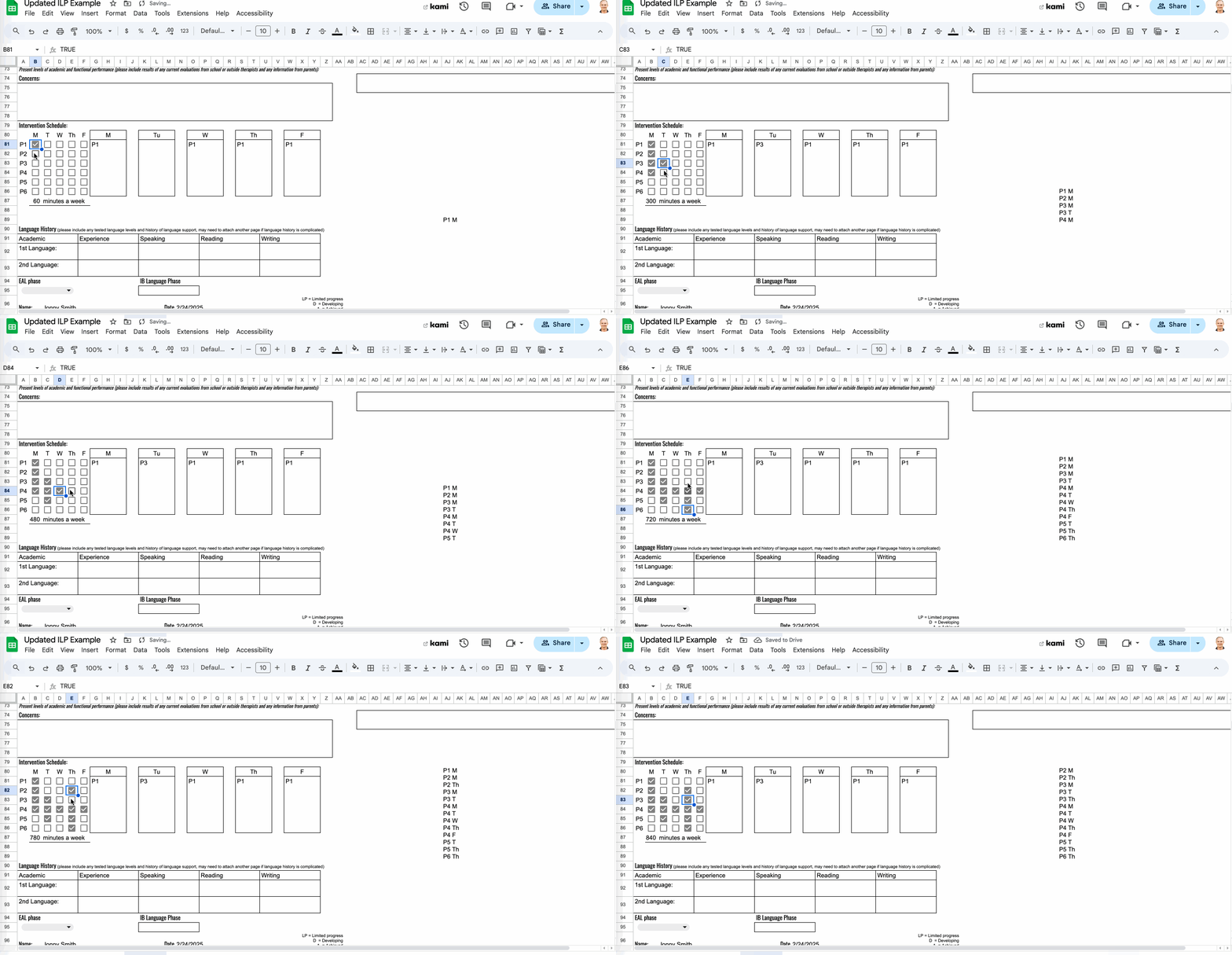
Creating Vertical Lists with Checkboxes

 =TEXTJOIN(CHAR(10), TRUE, FILTER(B4:B5, C4:C5=TRUE))

Today, I realized you can use a formula to make a list inside a cell in Google Sheets. 

Why would you want to do this?

In my case,  I am trying to make the IEP/ILP process smoother. It doesn't make sense to keep rewriting information each time you write a report about a student. I think using a Google Sheet to make a document will be easier. 

I was able to put text together using TEXTJOIN and separated by a space or by comma before, but ChatGPT showed me that I could add the CHAR(10) -- line break -- to a formula to make the list.

This formula puts checkmarks in a list, in order of day, combined with the labels from the matrix.


Save this formula for later. 
=TEXTJOIN(CHAR(10), TRUE, ARRAYFORMULA(IF(B81:F86, A81:A86 & " " & B80:F80,)))

I ended up separating them out into the columns to the right of the checkboxes.

Wednesday, February 12, 2025

Challenge Accepted

A few weeks ago, maybe a few months now, I created a schedule using ClaudeAI to make a testing clock. 

Screenshot of a testing accommodations tool made with ClaudeAI

It's functional. It works. 

Today I noticed that my colleague, who also does testing accommodations, had a spreadsheet projected on the whiteboard with the times.


When he projects it on the whiteboard, it looks like this:


I asked about the formulas in it. At the time, he didn't have any. 

My mind immediately went to work about how to make it work in Google Sheets. 

I had the basic structure in my mind. During my break I went to work building it. 

When we give accommodations, we write the start time, 30 minutes remaining, 5 minutes remaining, and the end time. Calculating this is always a chore. 

To the spreadsheet! 

I knew I wanted a drop-down of student names. This would eventually be for all students in inclusion support, so it would be quick and easy to use.

I found online that I could use a formula called =TIME. Using ChatGPT, I was able to do a VLOOKUP with all the names that looks like this - =B4+TIME(0,B3,0)+TIME(0,B8,0)

Here are all my formulas for this one.
=B7-TIME(0,5,0)
=B7-TIME(0,30,0)
=B4+TIME(0,B3,0)+TIME(0,B8,0)
=B3 + (B3 * IFERROR(VLOOKUP(B1, E4:F7, 2, FALSE), 0))


My tool


Here's a link to the working example.

I'll start making it look better tomorrow. I also have to check my formulas.

Thursday, November 28, 2024

SEQUENCE

The SEQUENCE formula will do what is says - it will make a sequence of numbers in many different ways. Here is a video I made that demonstrates it.


Saturday, November 2, 2024

TOCOL and TOROW

TOCOL and TOROW

There are two functions to look at when changing a dataset into a column or row: TOCOL and TOROW. Both of these formulas take an entire dataset and reformat them to either a column or a row. 

In the example below, I have a dataset surrounded by a black line. To make it into a column, in the cell A2 I typed the formula =TOCOL(C8:O70). C8:O70 is the range of the data. 

When I tried TOROW, I had to add another 500 columns, so I just adjusted the range so it would fit.


Saturday, October 26, 2024

Chart Experiment - Retirement-Age Workers by U.S. State

I was pretty sure that I did this before, but looking back in my Google Drive, I don't see it. I thought that over the summer I had seen an article about states and their corresponding party affiliations and from that I made a chart. 

But I can't find it.

So, I grabbed data from 270towin for the political parties. 

Then I put it all into a Sheet and tried a few charts. I ended up deciding the bar chart showed it the best, although the radar chart was the most artistic.


So, then here's what 


This was still hard to gain evidence from, so I though maybe getting the sum would show me something. To me it looked like the blue states had a higher percentage. So, here are the SUM values.

Red 440.4
Purple 318.8
Blue 412.7

The count of each party are as follows:
D16
P14
R20


The bar-thinckness couldn't be changed, and while I was trying different chart types, I tried the stacked bar chart. For some reason that made the bars wider.


Still, I am not thrilled with the lack of options for this type of data in Google Sheets.

The important things to remember with different series is how to structure the data. Each series needs to be in a different column.


Tuesday, October 22, 2024

Tracking Reading Growth with Line Graphs

In our PYP program, we use DIBELS to track student reading fluency. The first step is to create a table that includes the assessment dates and fluency scores, with a separate column for benchmark scores.

I conducted this experiment to see if I could create a graph that displays both fluency test results and benchmark scores on a single chart. By doing this, I aimed to visualize student progress more clearly.

In the table below, column A contains student names, and column B contains the assessment dates. I set it up this way so that I could easily use the FILTER function to sort or focus on specific students. The fluency scores and benchmark data are placed in separate columns.

To create a graph with two line charts, I ensured that the fluency and benchmark scores were in different columns. To make the lines continuous in the graph, I checked the "Plot null values" option. This step is crucial, as without it, the benchmark scores would only appear as isolated dots rather than a connected line.

AI used for editing.


Wednesday, October 16, 2024

Making an assessment accommodations schedule

At our school, like all schools, we have students with learning differences. When students qualify, the IB grants them testing accommodations. This could be someone to read the questions to them, the use of certain technology, but mostly it means these students are granted additional time. 

In order to be informed about upcoming assessments, we looked to using a Google Form. 

The initial version of the data from the Form was functional but hard to read. The results sheet was on a separate file and the data was hard to read. 


I did a few things that would help me if I were looking at it. I organized it by the date of the assessment to be first. Then I added the grade and class of the student. I needed to know when the assessment was and how long it was. I also removed tests that were over and ordered the tests in reverse chronological order - all to help me stay organized.

Here is what I came up with using a QUERY formula.

----------
=QUERY('IAA Requests'!A1:P, "SELECT D, B, C, G, E, A, I, J, K, L, F WHERE D >= DATE '"&TEXT(TODAY(),"yyyy-MM-dd")&"' ORDER BY D ASC")
----------

From here, after the Notes column is a column for Accommodations. Those are pulled from the student IEPs. It is just something that helps me.


My next step is to make one for the whole class. So the teacher says, "Grade 12 Physics is having an exam on Monday", give me the information of the assessment, and then the spreadsheet would show students and their testing accommodations using a FILTER formula.

Tuesday, October 15, 2024

Recreating a Chart from a Visual Capitalist Infographic

Over the summer, I had some time, so I tried a few experiments. I found some interesting YouTube videos from people remaking the graphics using Excel.

I don't have Excel - I have Google Sheets - so I got to work. They are almost the same anyway. 


And here's the final result. Nothing too fancy, but easier to read than a list of numbers. I think the heat map looks pretty good.

Thursday, August 1, 2024

Checking Historical Temperature with Google Sheets

I was back in Minnesota for the summer this year. The temperature really started to rise and I wondered if this was an anomaly, or if it was within the range of normal for July. 

Then I wondered if temperatures were increasing.

First I needed to get the data. A Google search for "Minnesota annual high temperature" led me to a site with the data I needed. <Example needed>

Here I could use the IMPORTHTML function to pull the data to the sheet.

There were actually two tables, so I needed to change the formula from 1 to 2. <Example needed>


After importing the data, I copied it and pasted the values only. Then I could change the dates to year only (file>format>number), and moved the date column so it was to the left.


From here, I was able to create a table. (file>insert>chart)

Then, I thought I wanted the annual minimum temperature, so I repeated the process.


My findings


The high temperature for the years has somewhat remained stable, while the low temperature is increasing. 

This isn't enough data to determine if temperatures are actually increasing, I'd need the complete daily temperature data for that ... it sounds like a cool project though!

Copy the file