Showing posts with label RAND. Show all posts

Thursday, July 7, 2022

RANDBETWEEN Function

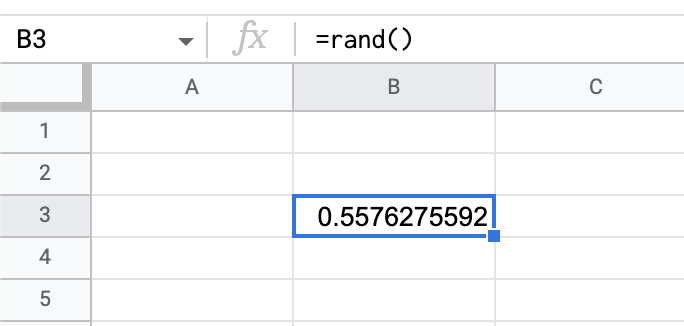
The RAND function in Google Sheets will give you a random number. 

=RAND()


As you can see in the above screenshot, the RAND function will probably not give you a usable number right away. That is where the RANDBETWEEN function comes in. With RANDBETWEEN, you can set the parameters of the integers (whole number)  you are interested in seeing. In the example below, RANDBETWEEN will choose between 1 and 10.


The RANDBETWEEN function can be used with text as well. Below is an example of using the RANDBETWEEN function with a list of names. 

By combining the INDEX function with RANDBETWEEN, it is possible to find a random name in a list. 


STEPS
1. Paste or type your list of names or words.
2. Type INDEX and choose the range of the list. In my example, the range is A29:A33.
3. After the range, type a comma.
4. Type RANDBETWEEN with the lower limit of the list (1) and the upper limit. Since I have 5 names, my upper limit is 5.


Instead of having a list as in the above example, the list of names can be added directly into the formula by putting them in curly braces {}.


If the data will change often, it might be better to simply use the cell names to use RANDBETWEEN. 


Monday, August 2, 2021

Formatting Numbers


A while back I was asked how to make all phone numbers in a list the same format. I don't have a very good solution, but I have something.

The first idea I had was to do data validation in the Google Form where you collect the data. Getting data as pure as you can when you collect it is always the best.

But the information had already been collected.

Step 1
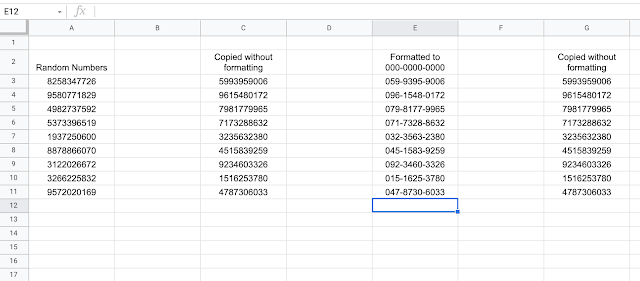
The first thing I wanted to do was to see if I could get a list of random numbers. Fortunately, Google Sheets has a RAND function that will do just that.

Step 2
Step 2 was to copy the numbers without formatting. When you paste into Google Sheets, there is a little clipboard icon that shows up. Clicking that will give you the option for a menu where you can choose to paste the values or the formatting. I chose the values because I didn't want the function anymore. Besides being good practice, the RAND function would have kept changing the data.


Step 3
The next thing I did was to reformat the numbers. I went to format > number > custom number format. Then I put in the formatting for a Japanese cell phone. (In my example another recommendation was to make a separate field in the form for a home telephone number that has a different formatting.)